
How To Use Standard HTML Video & Audio Lazy-Loading on the Web Today
HTML video and audio lazy loading is now a web standard and quickly gaining support in all major browsers. This feature was long overdue and, particularly given Squarespace’s role in proposing and implementing it, we’re very excited to see how developers use it on the web.
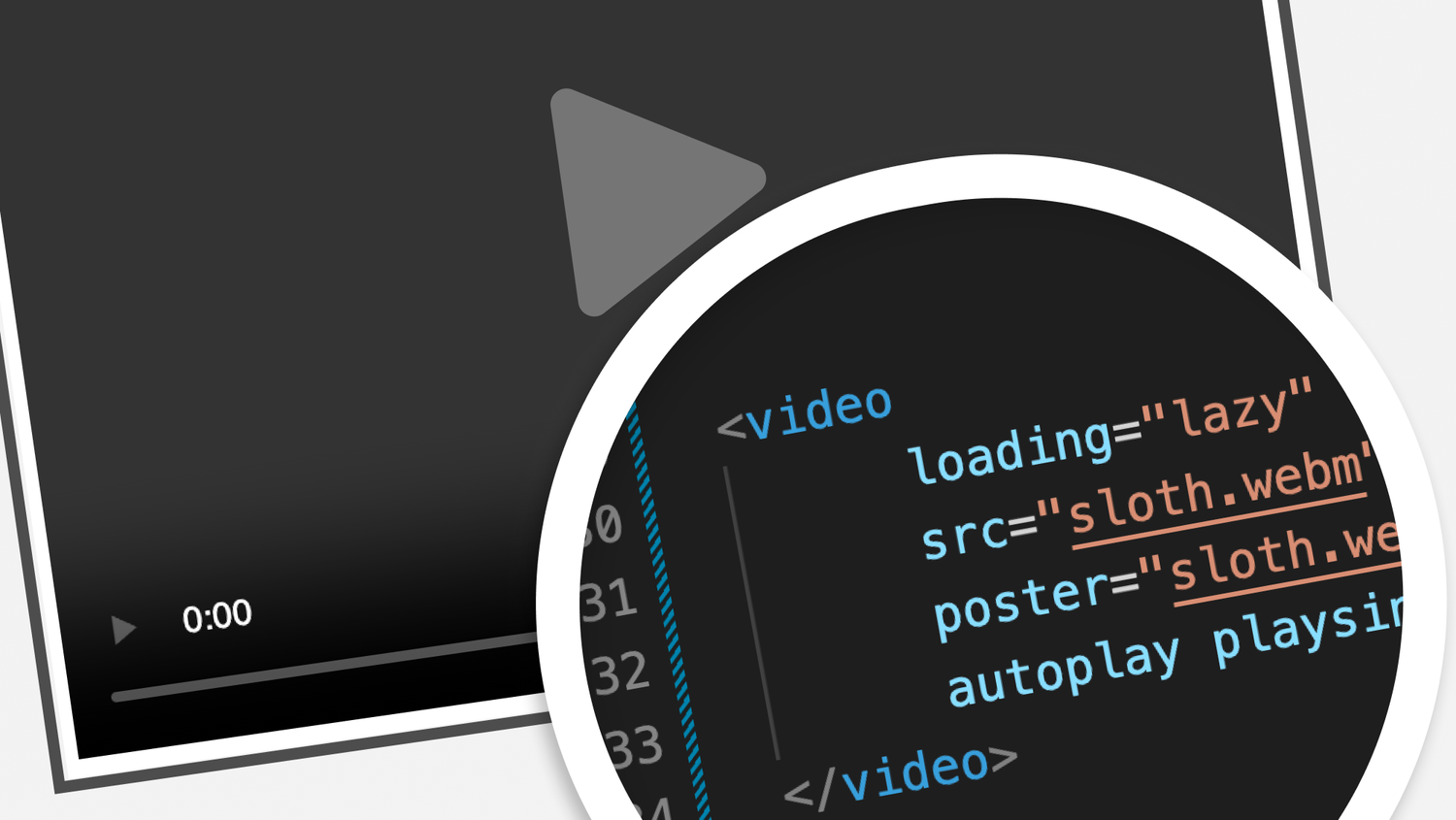
Figure 1 – An illustration of a web video player with a highlighted code overlay showing an HTML video element with lazy loading
In this post, we’ll cover some best practices for using video and audio lazy loading in any website, as well as some gotchas to avoid. Let’s dive into how we can make use of audio and video lazy loading in websites today.
This post is part 2 of a 2-part series. You can read about Squarespace’s journey to specify and implement this web standard in our first post, How We Brought HTML Video & Audio Lazy-Loading to Today’s Browsers.
Same Attribute, New Elements
Lazy loading is a pattern for delaying resources from downloading until they’re needed. In standard HTML, and <iframe> elements have supported lazy loading since 2019, and as of this year, you can use the same coding conventions for and elements as well. It all works by adding a
loading=”lazy” attribute.
First, let’s look at how it works with HTML video, as video has a few unique situations to cover – some of which won’t apply to audio. Here’s an example of a basic lazy-loading
<video loading="lazy" src="path/to/sloth.webm" controls></video>
Here, we have a
While not explicitly included above, we also recommend setting width and height attributes – or something equivalent in CSS such as the aspect-ratio property – on
Lazy Posters
Video lazy loading works in coordination with other attributes you’re used to using on
<video loading="lazy" src="path/to/sloth.webm" poster="path/to/sloth.jpg"></video>
Autoplaying Lazily
Another attribute that is deferred by lazy loading is the autoplay attribute, and its deferral is actually a bit of a killer feature in itself. Believe it or not, without lazy loading, many browsers will simply start playing an autoplay video as soon as the page loads, regardless of whether it’s even visible. That makes autoplay somewhat useless for videos that aren’t front-and-center in the viewport when the page first loads.
Of course, with lazy loading applied, browsers will wait to wait to play the following video until it is visible – and you can rely on that behavior in supporting browsers because we added it to the HTML spec (gentle reminder to check out part 1 of this series!)
<video loading="lazy"
       autoplay playsinline muted
       src="path/to/sloth.webm"></video>
Note here we’ve added a few other attributes that are necessary for autoplay to work in general. Most browsers enforce a policy that videos must be muted and have a playsinline attribute in order for them to autoplay, and that remains in place regardless of whether the video is lazy loaded or not, so be sure to include them when autoplaying – lazily or otherwise.
Lazy Loading and Preload
There’s one more attribute to mention with regard to its interaction with the loading attribute: preload. We saved it for last because it’s a little confusing, if at least by name. The preload attribute is designed to limit the amount of video data that the browser will load. By default – or if the attribute is omitted entirely – its value is auto, which allows the browser to decide how much of a video to download before it is played. Some browsers take this liberty to download, well, all of a video in its entirety, so you can use preload to specify it should instead only download just enough to display a preview (preload=”metadata”), or no video data (preload=”none”).
As an aside, preload=”none” can be nice to use in combination with poster as preload’s value only relates to video source data, so it can prevent that data from downloading while showing a preview image, which will load immediately, or lazily, depending on the presence of loading=”lazy” .
Having said all of that, the behavior of the preload attribute remains true when an element has loading=”lazy” applied, so the only difference to be aware of is that the behavior of the preload attribute will be deferred until the element is visible in the viewport. If you’re interested in further reading, you may want to know that browsers handle preloading in unexpected (read: buggy) ways as well.
Lazy Loading Audio
Now, let’s talk about lazy loading for audio. Lazily loading HTML audio is more straightforward than video, because
Here’s a lazy-loading
<audio loading="lazy" controls src="path/to/sloth.mp3"></audio>
Note that the controls attribute is present. Audio elements need a controls attribute for lazy loading to work, because that attribute is what makes an audio element visible in the browser, and an element needs to be visible and intersect with the viewport to trigger lazy loading. It’s not necessary for
Autoplay and Audio
Earlier, we mentioned lazy loading and autoplay for
Of course, once autoplay is enabled for audio, it’ll behave much like it does with video: browsers will delay autoplay until the audio element is visible – again, technically visible in or near the viewport – when loading=”lazy” is present.
Audio and the Preload Attribute
Just like the
When To Use It – And When Not To
Lazy loading is a great pattern for reducing the performance burden of low-priority images, video, audio, and iframes, but it’s not the best pattern to choose for anything you want to load immediately when the page is first served. For that reason, you should typically avoid using lazy loading on elements that are front-and-center in the viewport when the page loads. To clarify, these elements will still load and play regardless of this attribute’s presence, they just won’t fetch their resources as early as they otherwise would and that can run the risk of worsening crucial performance metrics like Largest Contentful Paint – a similar problem occurs with lazy-loading images. That’s because the loading=”lazy” attribute will cause browsers to wait for page layout to determine if the element is visible before fetching its resources. That’s much later than the resources will fetch normally, which actually begins even before the DOM is constructed.
Overall, this tip may only result in small differences in loading performance, but it’s helpful to keep in mind that this feature is meant for elements that are likely to be hidden from view when the page loads. Searchable pages on the web are measured for performance, so take those gains where you can get them!
Documentation, Browser Support, and Using It Today
Video and audio lazy loading is now a web standard, but browser support – while improving quickly – is still early. That said, all major browsers have implementations making their way to a release, two of which were contributed by Squarespace engineers! By design, the loading=”lazy” attribute is intended to be safe to use regardless of browser support because non-supporting browsers will ignore it, but we recommend testing your usage regardless to ensure this (and any) feature is working as expected.
If you want to check whether a browser supports this feature, the following JavaScript one-liner can do exactly that:
'loading' in HTMLMediaElement.prototype;
In case you’re curious, that HTMLMediaElement class referenced above is the base class that defines the shared features of the
With all of this said, you can test video and audio lazy loading today! Google Chrome 147 is rolling out now and it includes this feature behind a command line switch. If you have Chrome 147 installed, start it with the following switch enabled:
--enable-features=LazyLoadVideoAndAudio
Luckily, Chrome 148, slated for release on May 7th, will make it a default feature. As for other browsers, Squarespace contributed Firefox and WebKit implementations that are, at the time of writing, being reviewed for inclusion in future releases as well. For up-to-date information on all browser support, keep an eye on CanIUse.com and Google Baseline. For further information on this element and related HTML element features, we recommend reading MDN’s documentation.
Get Out There and Save Some Bytes!
We hope you found this lazy loading
Thank you for reading. Be sure to see our prelude post about how we made this a standard feature, Squarespace & Web Standards: How We Helped Bring HTML Video & Audio Lazy-Loading to Today’s Browsers.